【Creativity Zen Espresso | 創意心法】

Thursday, July 28, 2005

Text-to-Speech

Since Mac OS X embraced Unix, the old fashion command line interface gets its attention again from computing fans. I learned MS-DOS in the old time. Though the graphic interface is easy to use, I would admit that for sometimes only one word could describe how the command line interface feels--"COOL."

Try this if you are interested to have your Mac speak with a command line script. Launch the Terminal application, and input the following command:

/usr/bin/osascript -e 'say "hello"'

You should be able to hear your Mac is talking "hello" to you!

Labels:

Monday, July 25, 2005

Spilled Keyboard Repair

Since my dad bought me my first computer, an IBM PC-XT compatible, in 1987, this is the first time that I spilled water on my keyboard.

I called the Apple dealer, and they told me that it's better go get a new one. Thereafter, I dug into google to find how to repair a spilled keyboard by myself. Thank God! I really found one on the web! Since it's a demo for the last generation apple keyboard, I am here to record how I rescued my white USB Apple keyboard.

Tools needed:
#0 phillips Screwdriver, 1.27mm hex wrench
hex wrench

Step 1. Use the 1.27mm hex wrench to remove the 3 screws.
keybard back view

Step 2. Remove all keys on the keyboard. You can just use your bare hand to do so if you like.
remove keys

Step 3. Disconnect the two connectors from back cover.
disconnect

Step 4. Remove the screws with a #0 phillips screwdriver on the back of the key pad. (Yes, all of the screws, though it's quite many of them.)
remove screws

Step 5. Remove the transparent circuit membrane from the key pad. Find the stained spots on the membrane.
stained keyboard membrane
Attention! Do not lose the key punch sensors underneath the transparent membrane. It is sticky to the membrane.
key punch sensor

Step 6. Clean the spots with water or alcohol. Be aware that there are three layers of the membrane. We need to wipe out the stains on all of the layers, and also make sure that the cleaning water or alcohol is dried before you put the three layers together!
3 layers

Step 7. After the stain spots removed, reassemble with the opposite sequence.
cleaned

Step 8. Test the keyboard.

Step 9. If every key works back to normal, then it's finished.

Enjoy the recovered keyboard!

Labels:

Wednesday, January 05, 2005

Behind the scenes "Merry X'mas 2004"

中文→「2004耶誕賀卡」幕後花絮

Creating tools and environment:
• Hardware: Apple iMac G4/1.25GHz, 20” display; JVC GR-DX300U DV Camcorder with still camera feature.
• Software: Apple iPhoto 4; Adobe Photoshop CS
• Shooting Place: Villa Cosmos, Yangmei, Taoyuan, Taiwan

0. Shooting Object: Poinsettia (Theme for X’mas).

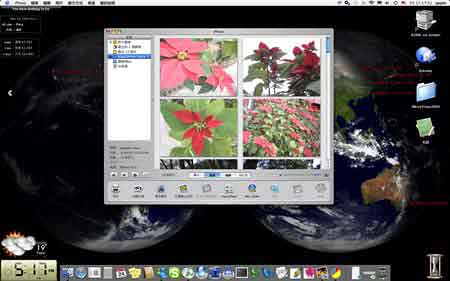
1. Import photos to iPhoto.
01.LiveShot2iPhoto

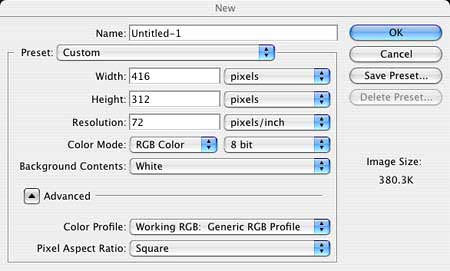
2. New blank document: 416 x 312 pixels, the standard size for iCard, RGB mode in Photoshop.
02.NewDocument

3. Open the background image (medium shot). Resize to it to be able to fit. Drag it to the new document. Set opacity to 15%.
03.BackgroundImage

4. Open the main object image (close-up). Use magic wand tool to select and clear its background. Drag to the new document. Arrange position to left (our eyes intend to see things from left to right). Rotate it for 180 degree. Flip the step 3 background image layer(to make two poinsettias easier to be recognized).
04.MainObjOnBG

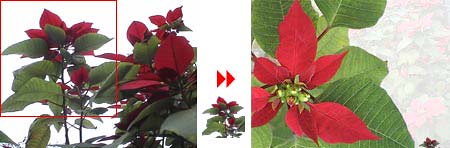
5. Open the deco object image (underneath shot). Crop the left one with more recognizable form. Resize. Drag to the new document.
05.deco

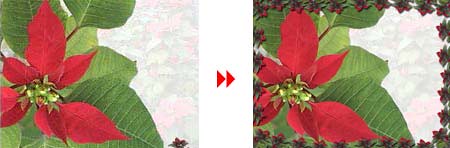
6. Duplicate the deco object layers until filling the four-side edge of new document to create a frame. Rotate the object if needed. Apply them the drop shadow effect to create the visual depth.
06.frame

7. Duplicate the main object layer. Use pen tool to draw the outline of the red leaf. Select the outlined area. Invert the selection. Clear the selection. Apply drop shadow effect on this leaf. Make sure it is over the deco frame layers. Do the same process on the bottom two red leaves.
07.RedLeaves

8. Use type tool to type the texts while altering their colors to create variation. Arrange the type with a suitable composition.
08.ImageFinished

9. The above steps are the processes for creating the image of the card. After that, I uploaded it on my pictures folder inside iDisk, provided by Apple’s .mac online service. Afterwards, just get online to the iCard page inside .mac service. Follow the onscreen instructions to make it an e-card and send it to friends.
09.iCardCompleted

Labels: